DCV TECHNOLOGIES Cares
Challenges with our previous DCV support system
Concerns shared on the Whatsapp group require us to manually enter their details into our centralized system to assign a ticket for its resolution.
We faced the Waterfall effect in Whatsapp, due to which ticket follow-up is inconvenient in Whatsapp groups.
Emails
Concerns raised through email often lack necessary details, hindering our momentum from addressing the concern faster.
Sending concerns to multiple email ids raises various redundant tickets in our single ticketing system.
Calls
Due to the increasing flow of calls, Account Managers cannot attend every call personally, and many of our clients’ calls are missed.
Sharing concerns via call has the chance of missing any details by our Account Managers, reducing their efficiency in resolving school concerns.
How we plan to handle the above communication channels from now on
- To avoid the Waterfall effect on Whatsapp, we request you follow up on your existing tickets by referring to your ticket numbers.
- If you choose to email us to follow up with your ticket, we request you to reply against the ticket email thread for us to keep accurate track of any updates for the particular ticket.
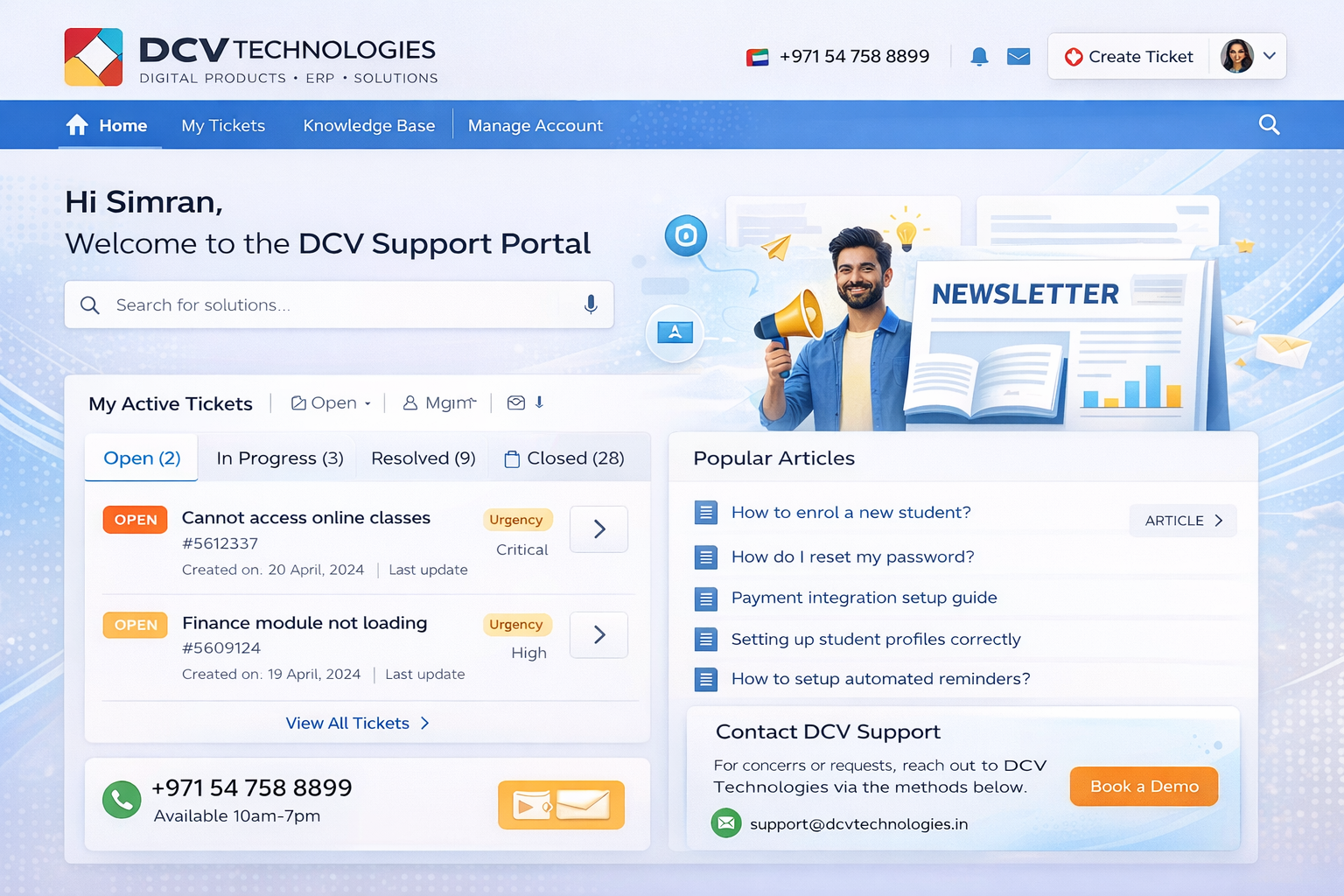
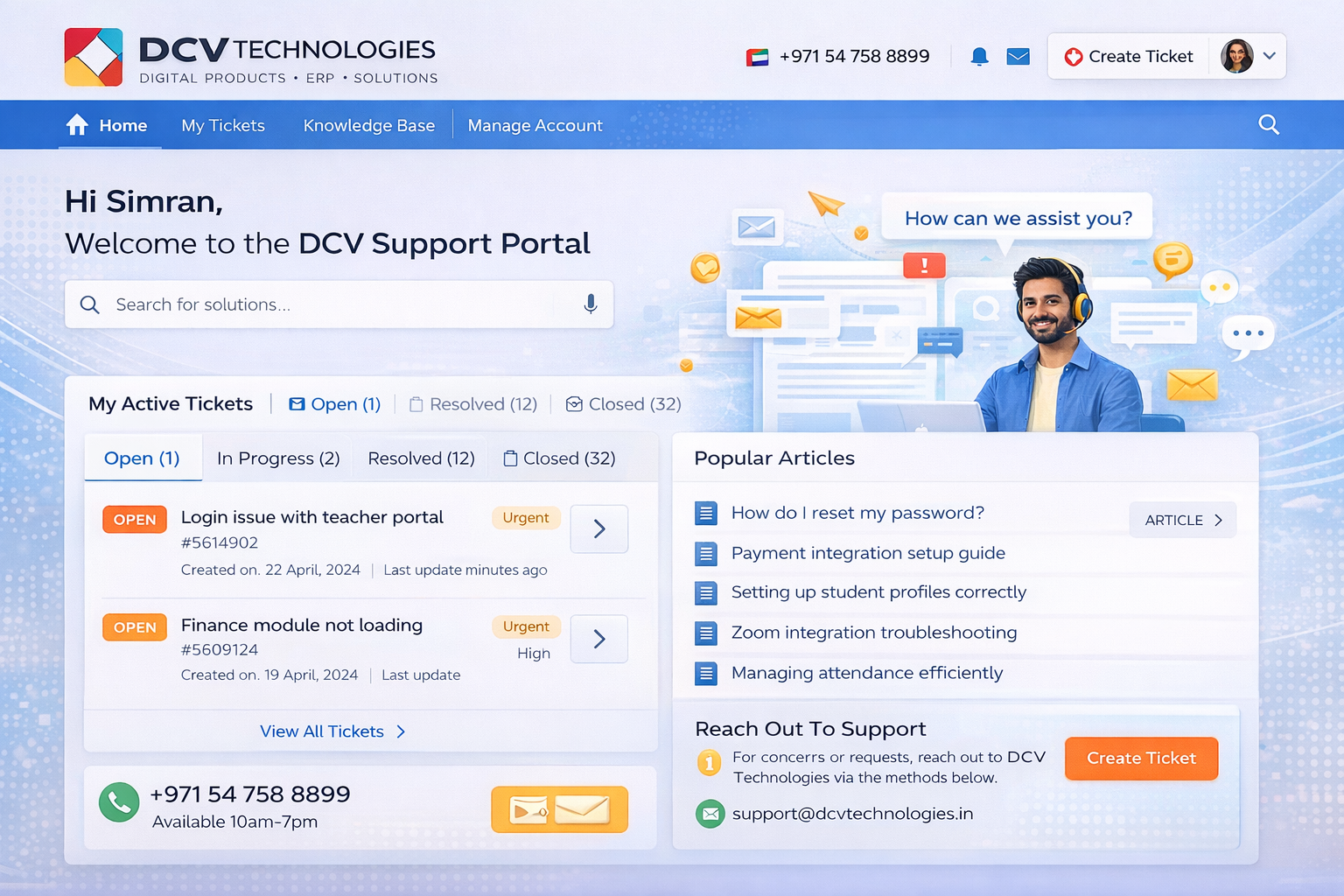
Raise a ticket on DCV quickly
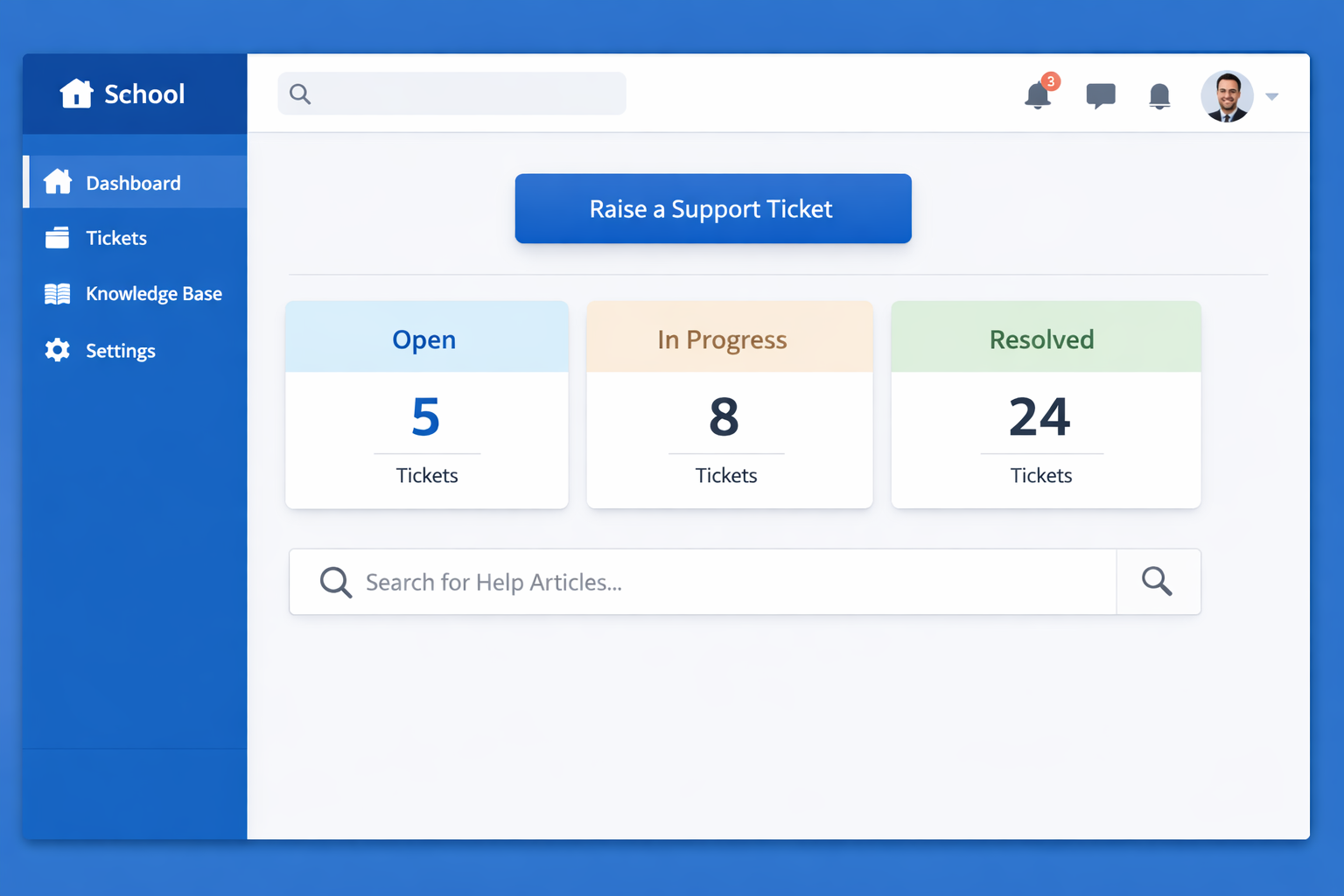
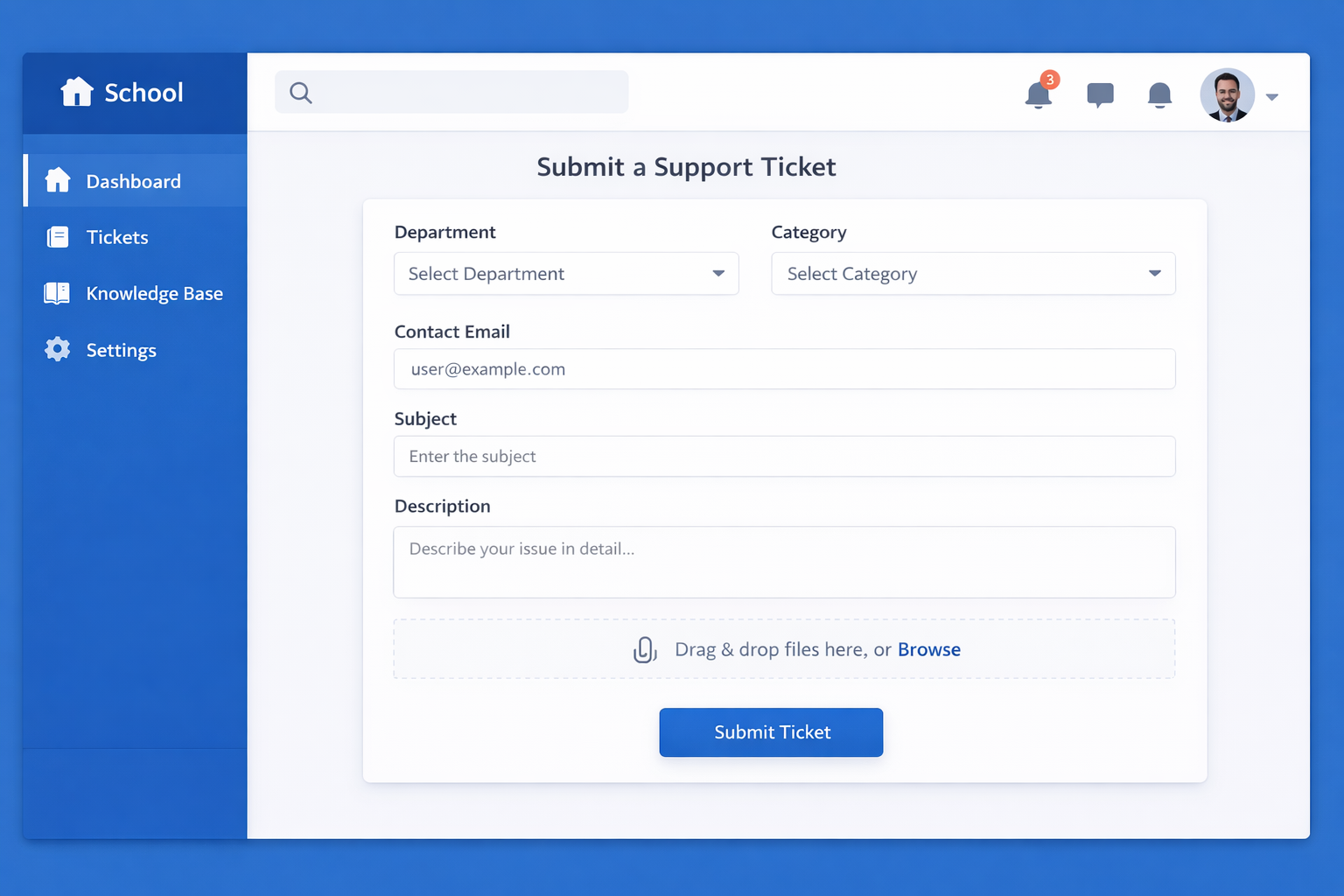
A systematic support system for better school operations.
- Login to the DCV portal
- Click on Profile, then go to Support.
- Fill out the details like department, category, contact info, and description.
- Submit your form and relax as your ticket is being processed.
- You will receive an email acknowledgement once we receive your ticket.
- Get guided paths powered by Whatfix for each question/self-help.
- Once you raise a ticket on our DCV portal, we have a standardized turnaround time (TAT) for the ticket based on the classification.
Book an online training with Account Manager
To connect with your account manager for training or system setup support, please book a slot for an online meeting. We offer a 30 min call for online training to support your proficiency on our platform. To interact with your account manager for online training or system setup requests, please follow the instructions below.
We bring you improved productivity and efficiency with our revamped support system.
- Login to the DCV portal
- Click on Profile, then go to Support.
- Select “Book a timeslot for online training” and fill out details. Add your remarks and click Submit to confirm your appointment.
- Your account manager will share the meeting link via email.
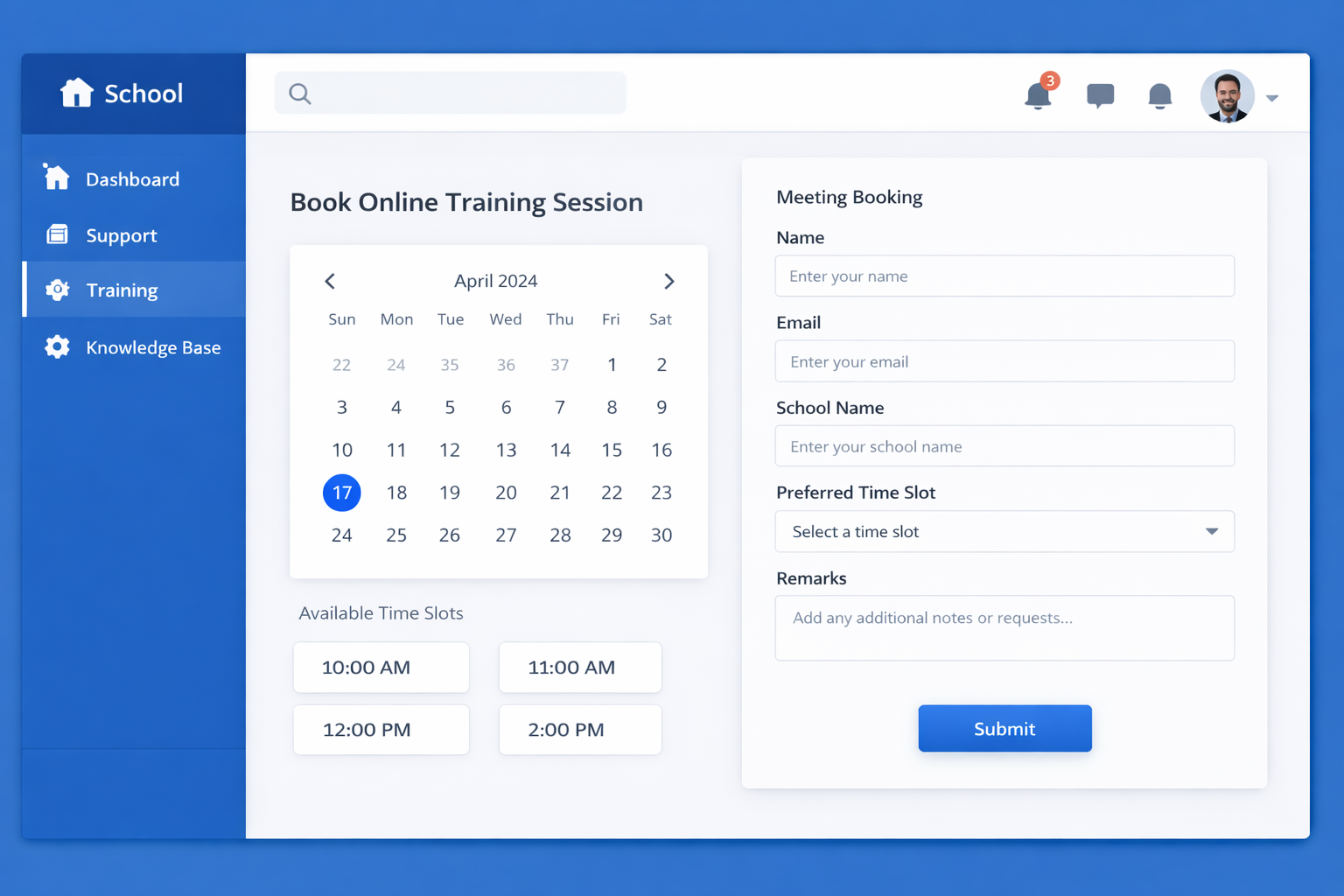
Please follow the instructions below to connect with your relationship manager
- Login to the DCV portal
- Click on Profile, then go to Support.
- Quick Questions on our support section in the DCV portal provide Frequently Asked Questions, PDFs, & Videos to assist you with product knowledge.
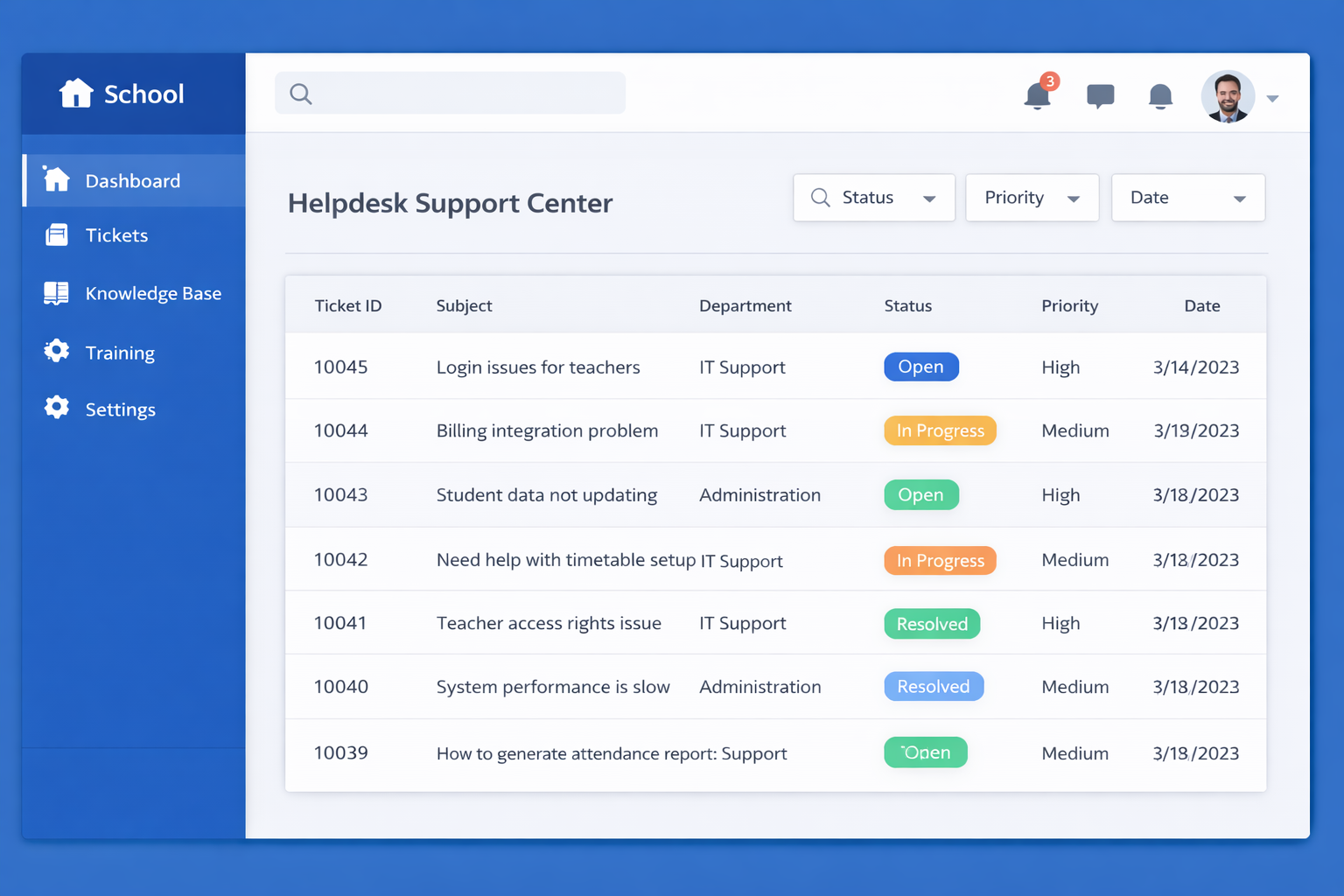
Self Help

- Login to the DCV portal
- DCV AI Assistant feature in your DCV portal provides in-app assistance for every module & feature, usage benefits, and live instructions for navigation to improve proficiency & productivity across various modules on our platform